- Overview
- Prerequisites
- Open the Repository settings
- Verify or change the path
- Validate the result
- Use the same check after cloning a QPP environment
Overview
Use this procedure when QPP needs to point to a different repository location or when you need to confirm that the current repository path is still correct. This is the first storage check to perform before you assume a cloned environment, backup file server, or new repository location is working correctly.
This article covers:
- Where to find the repository path in the QPP Admin interface.
- How to edit the path safely.
- How to confirm that QPP can still read and write to the configured repository.
- How to reuse the same check when validating a cloned environment.
Prerequisites
- Admin access to the QPP Admin interface.
- The repository path that the environment is expected to use.
- Permission to update repository settings if a change is required.
- For cloned environments, confirmation from Services or the environment owner that the cloned QPP instance is already running against the intended cloned database and functional QLA.
Open the Repository settings
- Open the QPP Admin client in a browser. A generic entry point is
http://<server-or-ip>:61400/admin. In local access scenarios you may also land directly onlocalhost:61400/admin/login.qsp. - Sign in with an administrative account.
- Open Administration > System > Storage.
- Select the Repository tab.
Why this matters: This is the screen that controls where QPP reads and writes repository-backed assets. If the path here is wrong, the rest of the environment can look healthy while storage operations still point to the wrong location.
Verify or change the path
- Find the repository row you need to inspect. One representative example used a repository named Storage with type fileRepositoryAdapter.
- Open the repository for editing by double-clicking the repository row or by using the row action that opens the Edit Repository dialog.
- Review the Name, Type, and Location fields carefully.
- If the path is wrong, update the Location field so it points to the correct repository location.
- Save the change.
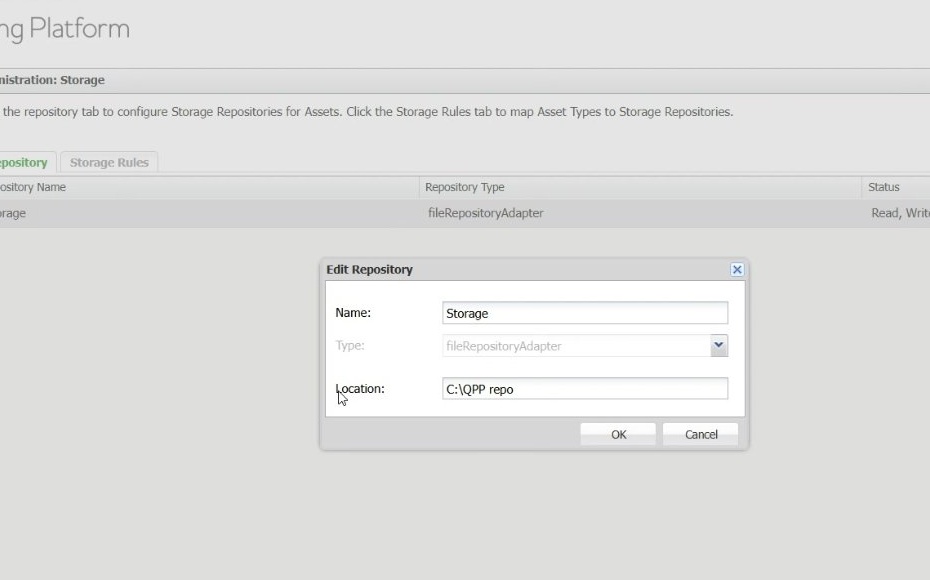
Warning: When the repository is edited, QPP can warn that Some Assets might be associated with this mapped storage Repository. Modifying the Asset Repository might make existing Assets in this Repository unavailable. Treat that warning literally. Changing the path is safe only when you know the target repository is the correct one for the environment.
Tip: If the repository does not exist yet, use the + button from the same screen. The Admin UI can present repository types such as fileRepositoryAdapter and Amazon S3 Repository Adapter.
Validate the result
- Return to the repository list after saving.
- Confirm that the repository status shows Read, Write.
- If the status is not Read, Write, stop and correct the path or access issue before you proceed with other troubleshooting.
Why this works: The repository status is the quickest proof that QPP can reach the configured location. A path that looks correct but does not return Read, Write is not ready for production use.
Use the same check after cloning a QPP environment
- Confirm with Services or the environment owner whether the cloned QPP instance has already been repointed to the intended cloned database.
- Do not assume the database credentials changed. If the cloned server and cloned database already exist, confirm whether only the server name changed while the user ID and password stayed the same.
- Open the cloned environment's Repository settings and verify that the Location field points to the cloned repository location, not the original environment.
- Confirm that the repository status is still Read, Write.
- Ask the customer or Services team to validate a representative asset XML from the cloned environment and confirm that it resolves against the cloned repository rather than the original environment.
- If the environment does not have a standard XML inspection method, stop after the Read, Write check and hand the clone-validation step back to Services rather than guessing.
Why this final clone check matters: A cloned environment is not really complete until storage, database, and asset references all line up. The repository path is the fastest visible checkpoint in Admin, and the asset XML is the final proof that the cloned environment is reading the expected repository references.
Priyanka Bhotika
Comments